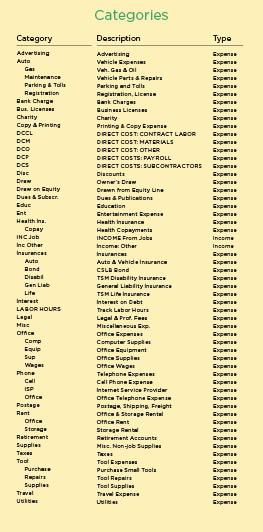
Generating reports. After you’ve used Quicken for a while and have entered a number of invoices, you’ll be able to use the Reports function to keep an eye on job costs. From the menu bar, select Activities > Reports & Graphs > Reports (Figure 5). From the Standard tab, select Category Detail and enter the date parameter you want to analyze. Choose how you want to subtotal the report—by category, class, or memo—and click the Customize button. If you wish, you can title the report. Then click on the Content tab and in the Memo field select “Contains” and type in the job name. (Again, if you select “Is” in the pull-down rather than “Contains,” you’ll miss the invoices with “&” and “@.”)
The resulting report will list each line item that contains the requested Memo. If that’s more detail than you need, back up to the Standard Reports tab and select Category Summary instead of Category Detail. Indicate the Memo and which categories you want and Quicken will tell you your gross materials or subs (or whatever you indicate) for the requested time period.
I recommend that you goof around with the reports to see what’s possible. When you hit upon a report that you might use again, select Edit > Memorize (or Command-Y) from the main menu bar, and the report will be listed under the Memorized report tab. My most frequently used report is a customized category detail that gives all direct costs and job income categories for a given job name (Memo). When I “memorized” the report, I inserted the word “NAME” into the “Memo: Contains” field (Figure 6). Now, to pull up a given job, I simply replace NAME with the job name and the rest happens automatically.
Two other memorized reports that get a lot of use are Gross Profit YTD and Net YTD. Gross Profit gives me job income less job costs for the year, while Net subtracts job costs and overhead expense from income to tell me if I need to tighten up to remain in the black.
Labor hours workaround. Another way I use Quicken is to track and report my crew’s hours in the field. To do this—it’s not a built-in function of the program—I’ve set up a cash account called Labor Hours. Every two weeks, as I do payroll, I record labor hours into this account as if they were dollars. If a carpenter has worked on two jobs doing a series of tasks, I record those as a “split” (Hours/06.10…Smith). Since I bill by hours, I pull a report from this account when I’m preparing a client’s service statement, and it gives me the numbers I need quickly (Figure 7).
Remember to back up. Once you’ve moved your financial records to the computer, make sure you have a plan for backing up your accounts to a separate drive or disk. Set the backup to happen automatically and regularly. You do not want to lose years of financial records (trust me on this).
What I’m waiting for now is a program that will let me scan in an invoice and pay it electronically while automatically billing the client’s escrow account. The program will also warn me when lumber prices are up and let me know when I’m far enough ahead to relax and think about a fishing trip. Until then, I’ll keep pushing the limits of Quicken.
Tim Murphy is a contributor to The Journal of Light Construction and a remodeling contractor in the San Francisco Bay area.