Paying bills. I try to bill my clients on a two-week cycle, and job invoices tend to pile up during that period. To record an invoice, you first open the account it is paid from: Checking, Credit Card, House Account, Cash. If you use your supplier’s house accounts, you can set them up as lines of credit and record each invoice as you get it; or, if you typically wait for the monthly statement, you can record all the month’s invoices when you write the check. (I’ve closed most of my house accounts unless they give discounts for quick payment and instead use a credit card with a reward program. As long as I pay in full every month to avoid the crazy interest charges, the free reward points can add up quickly on a big job.)
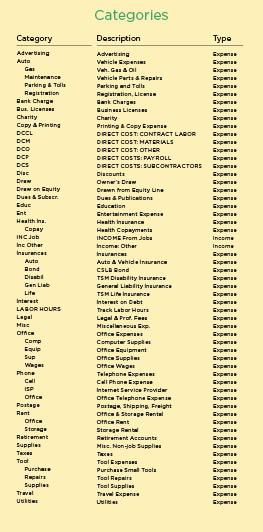
Most of my invoices apply to a single job, which is recorded on the Memo line, and just one category and class. When writing a check in Quicken, I first enter the date, the payee (Quicken’s autofill feature does most of the typing), and the amount. In the Category box, I enter, for example, DCM (for a materials bill), followed by a forward slash (/) and then the class code. So “DCM/06.10” means the check is for a direct material cost in the rough carpentry phase. I then tab into the Memo box and enter the job name (Figure 3). I make sure this entry is accurate and consistent because later I’ll be creating reports by asking for all transactions with that name in the Memo field. When I’ve paid by credit card, I enter the information directly into the card’s register and click on Record.
Split checks. Of course, some invoices list purchases made for multiple jobs or several categories and classes. To capture this information, I open what Quicken calls a “split” in the register and enter the information on as many lines as I need, again making sure to assign accurate job names to the Memo field (Figure 4).
If an invoice includes costs from a change order or for work not included in the original scope of work, I will add an “&” (ampersand) after the job name. If an item is being tracked as an allowance, I add “@” to the job name in the Memo field. Later, when I pull up a report for that job, the items with “@” and “&” after the name on the Memo line will also come up, reminding me to note the expenses.
(There are a couple of ways to create a report. If on the pull-down I ask for a report that “Contains” the name in the Memo field, the items with “@” and “&” will also be reported. If I ask for a report that “Is” the Memo name, those items will be excluded.)