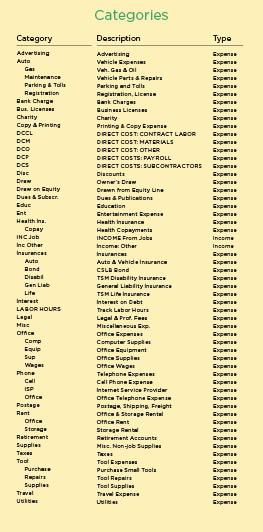
Setting up categories. I currently use Quicken 2007 for Mac, so that’s the source for the screens that appear in this article. If you are just starting out with Quicken, you’ll begin by opening a new file, which you will name (with your company name, for example) and assign a place to store (typically in the Quicken folder). Quicken will then immediately give you the option of importing its categories and subcategories (for home or business) or allow you to choose your own. This is a critical step: If you set up your categories correctly, you’ll be able to track job costs and income by client, supplier, job phase—or in any number of other ways. Year-end tax reporting is also straightforward. The key is to have an organized, meaningful list of Quicken categories, classes, and memos.
If you already have a chart of accounts you’re comfortable with, you would record them here. I’ve developed my own list of categories, which has evolved over the years. These categories include everything I need to track jobs and prepare year-end statements.
Keep in mind as you get started that you can always add and delete categories as time goes by and your needs change. (For an example of a very complete list, visit NAHB’s Web site, nahb.org, and search for “Chart of Accounts.”)
Direct cost categories. A key component of my list is the direct cost categories, which I use to record any expense attributable to a project (see Figure 1). I’ve named these categories DCM (for direct cost: materials), DCS (for direct cost: subcontractors), DCP (direct cost: payroll), DCCL (direct cost: contract labor), and DCO (direct cost: other). Contract labor includes those expenses that may require a Form 1099 at the end of the year; “other” covers tool and equipment rental, hauling, and any other direct cost not otherwise categorized.
Note that all the direct cost categories begin with DC, so that when I need to create a report I can ask for a summary of expenses from categories starting with DC.